Push Changes To GitHub
- First off, be sure to save any work you’ve done in whichever application you’re working from!
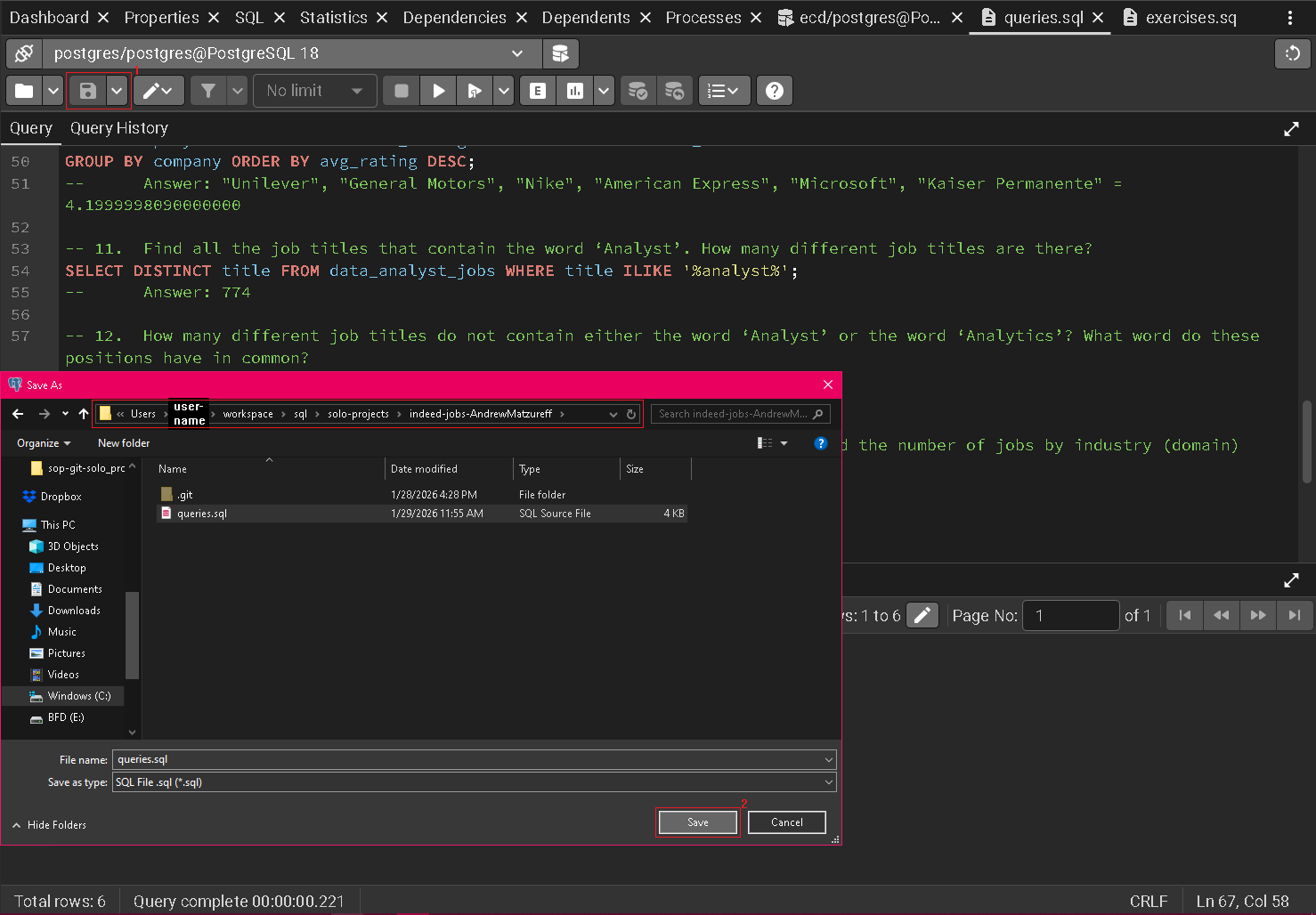
⚠ NOTE: If you have your work saved to a location outside of your local git repo you will need to copy or move the saved file(s) into your local repo!
-
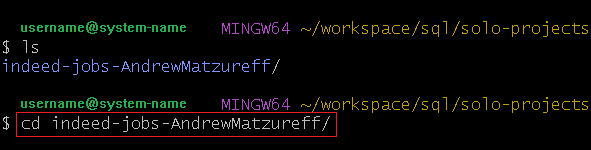
Using GitBash or your terminal of choice navigate to the folder containing your local git repo and then
cdinto it.
- It’s always helpful to perform a cursory
git statusand/orgit logto remind yourself of the current state of your working tree. If you don’t see your changes under “modified files” (if you’ve edited an existing file) or “untracked files” (if you’ve created a new file since your last commit) or you are not checked out to the branch you intended then this is your opportunity to investigate why the contents of your repo are not as you expect. If everything checks out (no pun intended) then proceed with confidence!
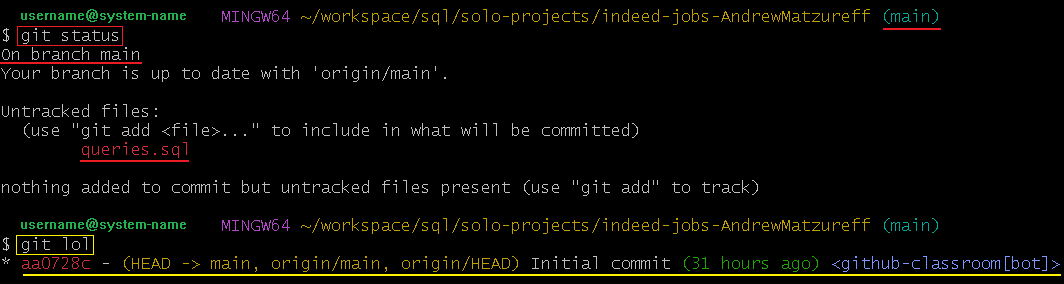
⚠ NOTE: You can get a detailed printout of your working tree's commit history including commit messages and branches using `git log`.
To get a more concise, formatted, visual representation of your commit history you can use an alias such as `git lol` to output the log in a specific, desired format:
```
# Assign a concise, pretty-formatted commit log command to a short, convenient alias ("git lol"). This only needs to be run once to be able to use "git lol" whenever and wherever.
git config --global alias.lol "log --graph --pretty=format:'%Cred%h%Creset -%C(yellow)%d%Creset %s %Cgreen(%cr) %C(bold blue)<%an>%Creset' --abbrev-commit"
``` -
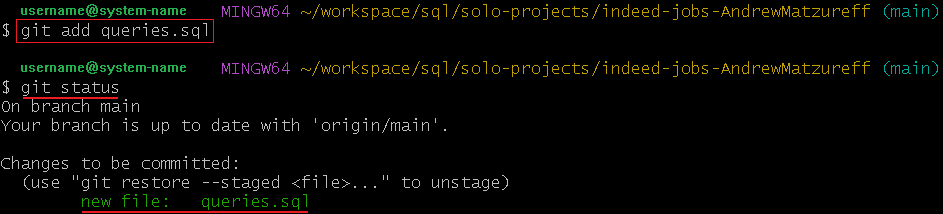
Once you have confirmed that your changes are ready and your local git environment accurately reflects your expectations, go ahead and stage your new/modified files using
git addmaking sure to continue validating your expectations usinggit statusand/orgit logas you go.
- After you’ve staged all the files you’d like to include in your commit, you may save their current state to the tip of your current local branch while providing a helpful message to describe the changes by using:
git commit -m "Your message here.".
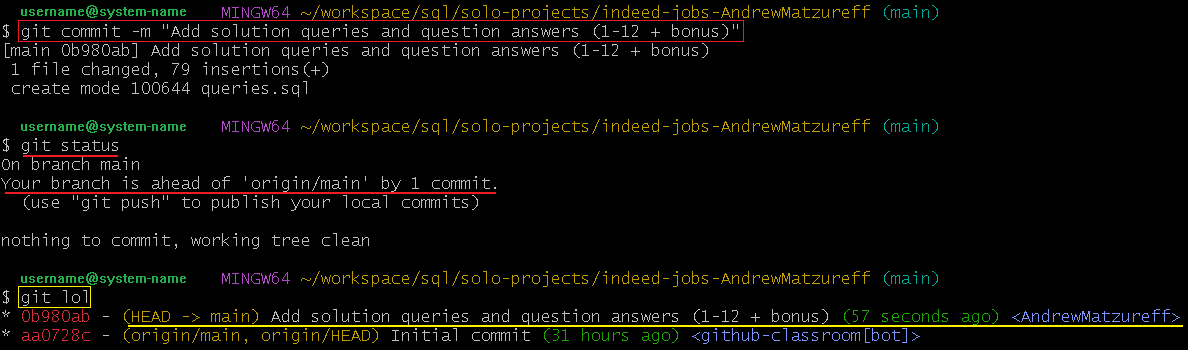
⚠ NOTE: Make sure that you are checked out to the very tip (latest commit) of your current branch!
You can verify this by using `git lol` (see note at step 3 for instructions on how to set up `git lol`) to check for `(HEAD -> your-branch-name)` where `your-branch-name` refers to the branch you want to make changes to.
After committing your changes another `git lol` should show 1 new line above the previous latest commit (e.g: the current state of your remote repo at `origin/main` and `origin/HEAD`) containing your new commit alongside your message at the tip of your branch.
```
# Print out a concise, pretty-formatted commit log so that you can visually verify the state of your working tree.
git lol
``` - If everything looks good locally you are free to
git pushyour latest changes to GitHub!
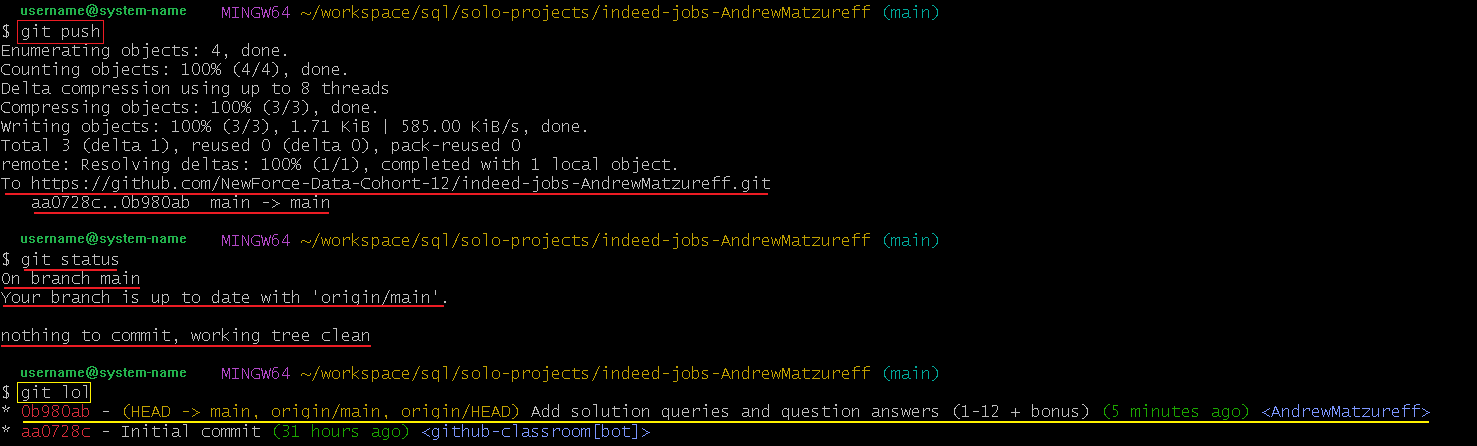
⚠ NOTE: Make sure that your remote branch is now synced to your local branch!
You can verify this by using `git lol` (see note at step 3 for instructions on how to set up `git lol`) to check for `(HEAD -> your-branch-name)` where `your-branch-name` refers to the branch whose latest changes you just pushed.
After pushing your changes another `git lol` should show that the current state of your remote repo (e.g.: at `origin/main` and `origin/HEAD`) now corresponds to the latest commit you just created at the tip of your local branch.
```
# Print out a concise, pretty-formatted commit log so that you can visually verify the state of your working tree.
git lol
```
Looking for another SOP?
- Visit: NewForce SOP Index